

- Some messages are always sent, whatever you choose. See What’s always sent below.
- You only see the kinds that apply to you. Captains and club admins see a few more.
- Alerts on your phone are set up separately. See Turn on push notifications.
Choose your notifications
1
Open Notification settings
Tap your initials (top of the screen on a phone, foot of the sidebar on a computer), then Notification settings.
2
Tick what you want
Each box, like My matches or League news, turns that kind on or off in the app and by email.
3
Choose your recap
For Weekly recap, pick In-app and email, In-app only, Email only or Off.
4
Set message emails
Message emails is the email only. Messages always show in the app.
5
Save
Tap Save preferences.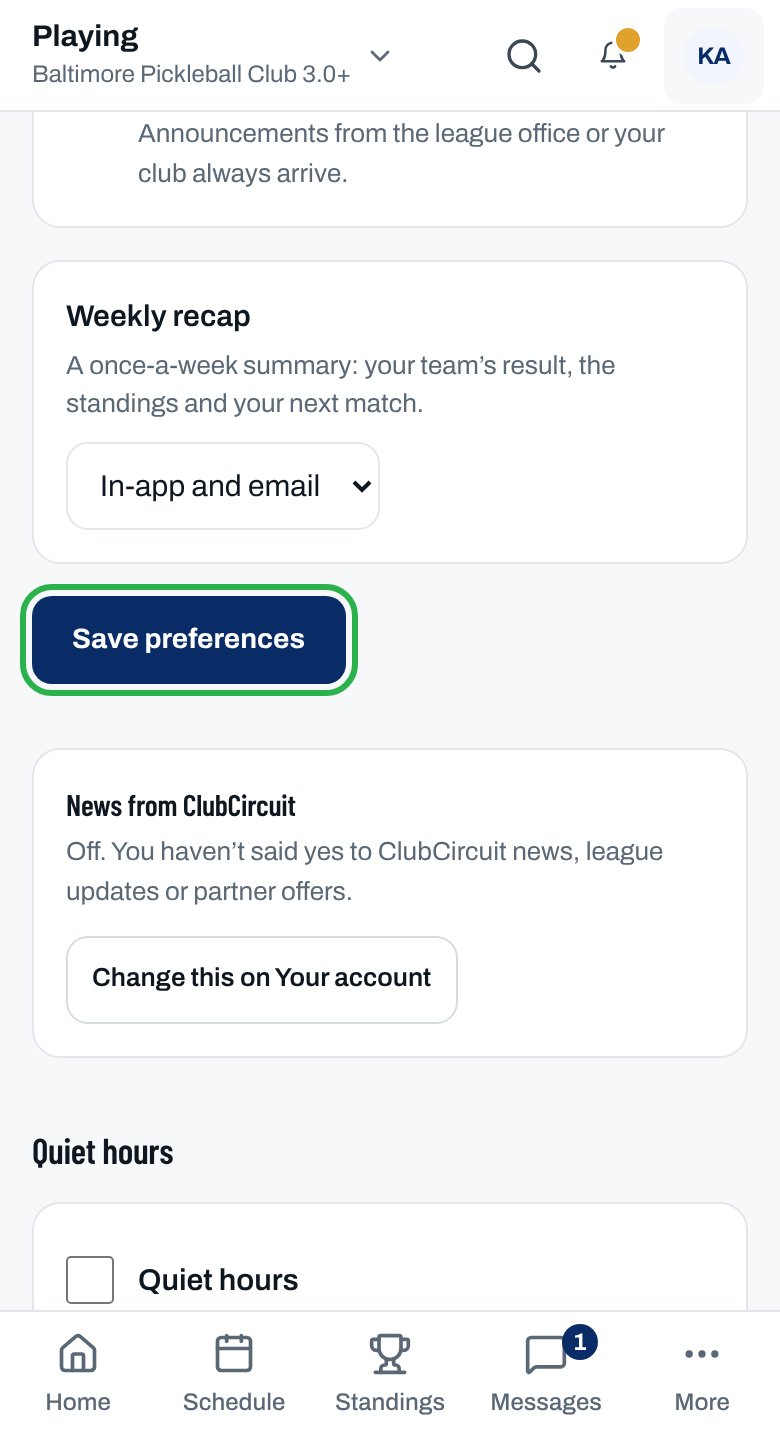
Saved. appears at the bottom of your screen. Close it with the ×.
More settings
What's always sent
What's always sent
These can’t be switched off, and they arrive during quiet hours too:
- Sign-in codes, payments, receipts, refunds and court fees
- Your registration and team placement
- The schedule, and any match being moved or canceled
- Scores, results and disputes
- Sub offers and lineup deadlines
- Messages between captains, and announcements from the league office or your club
Set quiet hours
Set quiet hours
Under Quiet hours, tick Quiet hours, set From and Until, then tap Save quiet hours. Only your lineup and what’s always sent arrive straight away. Everything else waits in your inbox, and its email comes when quiet hours end. Phone alerts for lineup and court fee reminders also wait for daytime where your league plays; their emails come at once.
Unsubscribe from one kind of email
Unsubscribe from one kind of email
- Tap Unsubscribe from “…” emails at the bottom of the email, then Unsubscribe. You don’t need to sign in. You still see those notifications in the app.
- A club’s invitation to register has Don’t invite me again instead. Tap it, then Don’t invite me again on the page. No club can invite you again, and you can still register yourself.
ClubCircuit news emails
ClubCircuit news emails
Under News from ClubCircuit, tap Change this on Your account. Tick or untick the box there and tap Save. Match emails aren’t affected.
Direct messages
Direct messages
Tap Turn on DMs to let people in your market message you. Teammates and your captain always can. Turn off DMs stops it.
See your notifications in the app
See your notifications in the app
Tap the bell at the top of the screen. Newest are first. Tap Show older for earlier ones, or Preferences to change what you get.
Why isn’t this working?
I turned off emails but still get some
I turned off emails but still get some
Messages under Always sent can’t be switched off. Emails you can turn off have an unsubscribe link at the bottom.
I turned off League news but still got an announcement
I turned off League news but still got an announcement
Announcements from the league office or your club always arrive. League news is only the season’s milestones.
I turned off Substitute opportunities but still got a sub request
I turned off Substitute opportunities but still got a sub request
A request for a match in the next 48 hours always reaches you. To stop requests, switch to Not subbing on your Subbing page. See Sign up to sub.
I stopped getting notifications at night
I stopped getting notifications at night
Quiet hours are on. Untick Quiet hours or change the times, then tap Save quiet hours.
“Pick a start and an end time that differ.”
“Pick a start and an end time that differ.”
From and Until were the same. Change one and save again.
“This link doesn’t work”
“This link doesn’t work”
The unsubscribe link was cut short, or the account no longer exists. Sign in and change your choices on Notification settings.
“Nothing yet”
“Nothing yet”
Nothing has been flagged for you yet. Notifications about your registrations, matches and messages show up here.
Related articles
Turn on push notifications
Get alerts on your phone or computer.
Answer a sub request
Say yes or no when a team needs you.
Message your team
Team chat, lineup threads and direct messages.
Set your availability
Tell your captain whether you can play.